#Mobile App
Welcome to the documentation for the BLE Unlocker app, designed to unlock JT709A Bluetooth locks with ease. Using this app, you can open your locks with Bluetooth or by scanning a QR code. In this documentation, we will provide detailed instructions on how to set up and use the app, and provide information on compatible lock models.
#Compatible models
Currently the app only supports JT709A locks by jointech.
#How to use the app
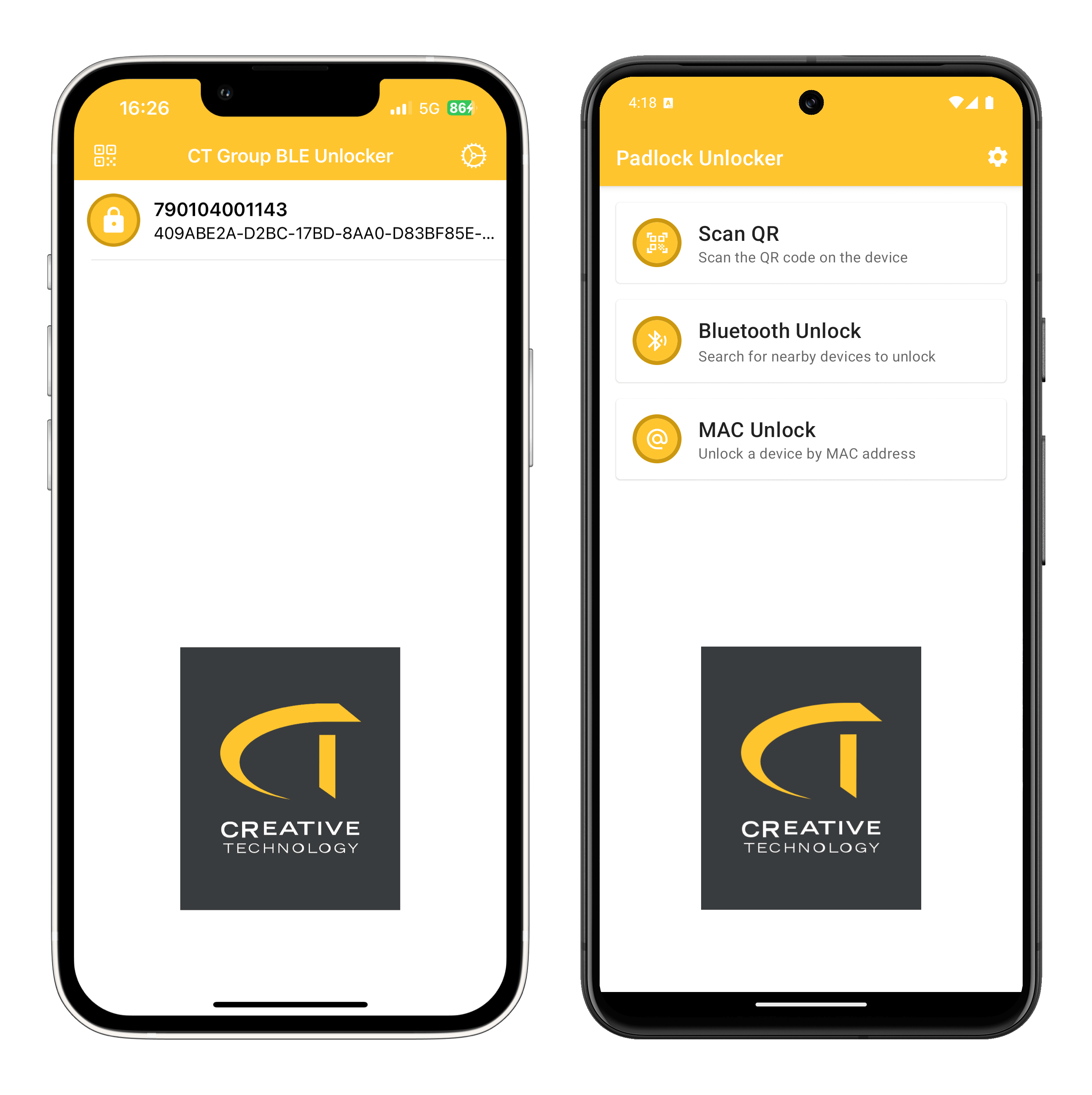
When you first open the app you will either be presented with a home screen (on Android) or a list of nearby locks (on iOS). On Android the devices list can be shown by tapping the corresponding section in the home screen.
#Devices List
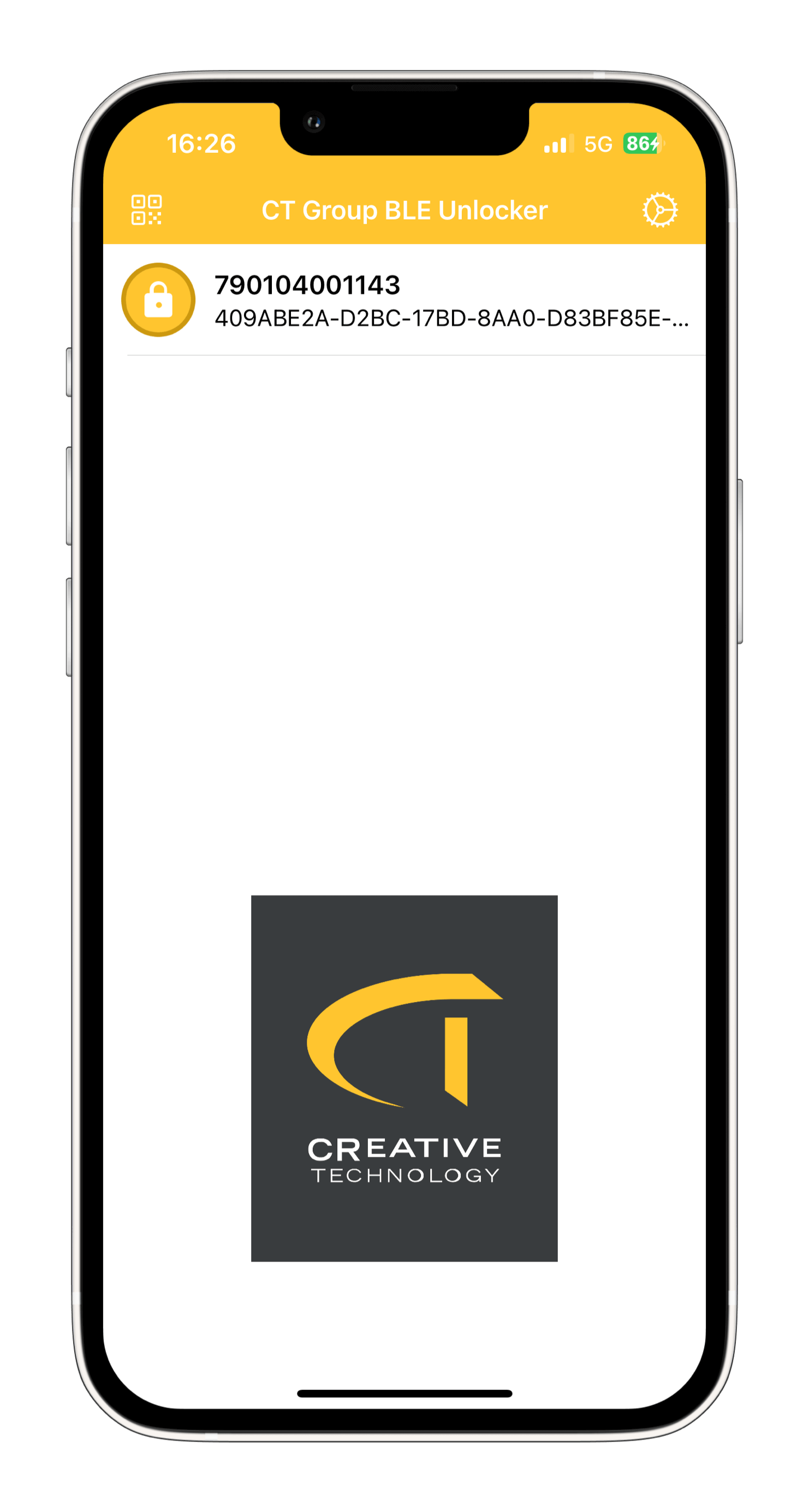
From the devices list (shown above) you can send an unlock command by tapping the lock in the list, but first you will have to configure a password in the app settings, accessible by tapping the button on the top right.
Here you'll be able to paste an encrypted password, generated using the Password Cypher tool, and once you tap save the password will be decrypted and saved within the app. If no password was set you will be shown a warning when you attempt to unlock a device.
#Unlock via QR
You can also unlock a specific device by pointing to the QR code printed on the lock. This feature is accessible by tapping the button on the top left on iOS or the specific section in the Android app's home.
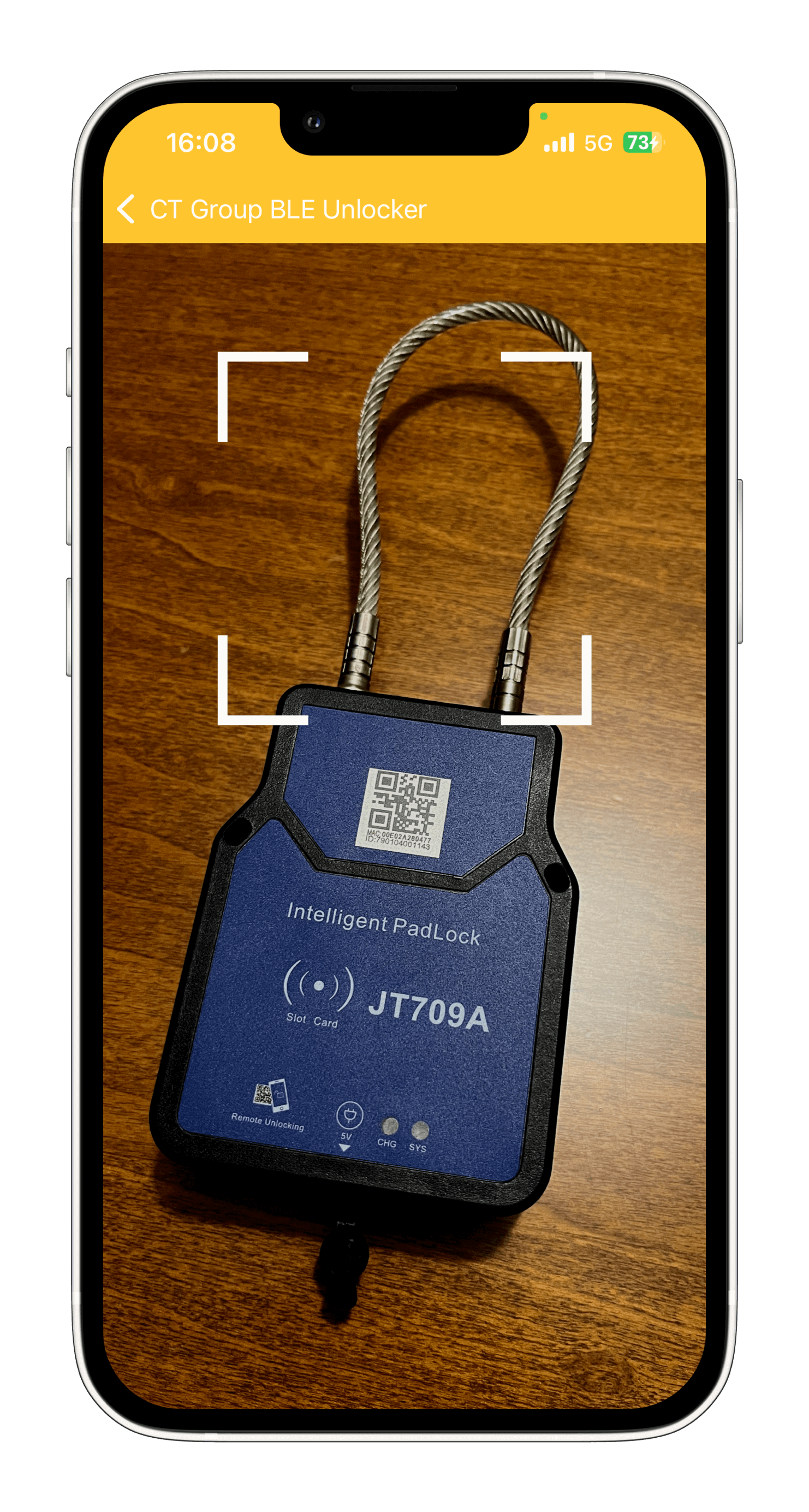
Currently, the QR code format is different for the Android and iOS versions:
- Android: you can point to the QR printed on the lock, which contains the device's MAC address.
- iOS: for iOS, you will need to generate a QR that contains the device name (e.g. 790104001143 for the lock used in this guide), since MAC addresses are not available on iOS as a privacy enhancing feature
The QR code format is subject to change in future versions of the app.
#Unlock via MAC
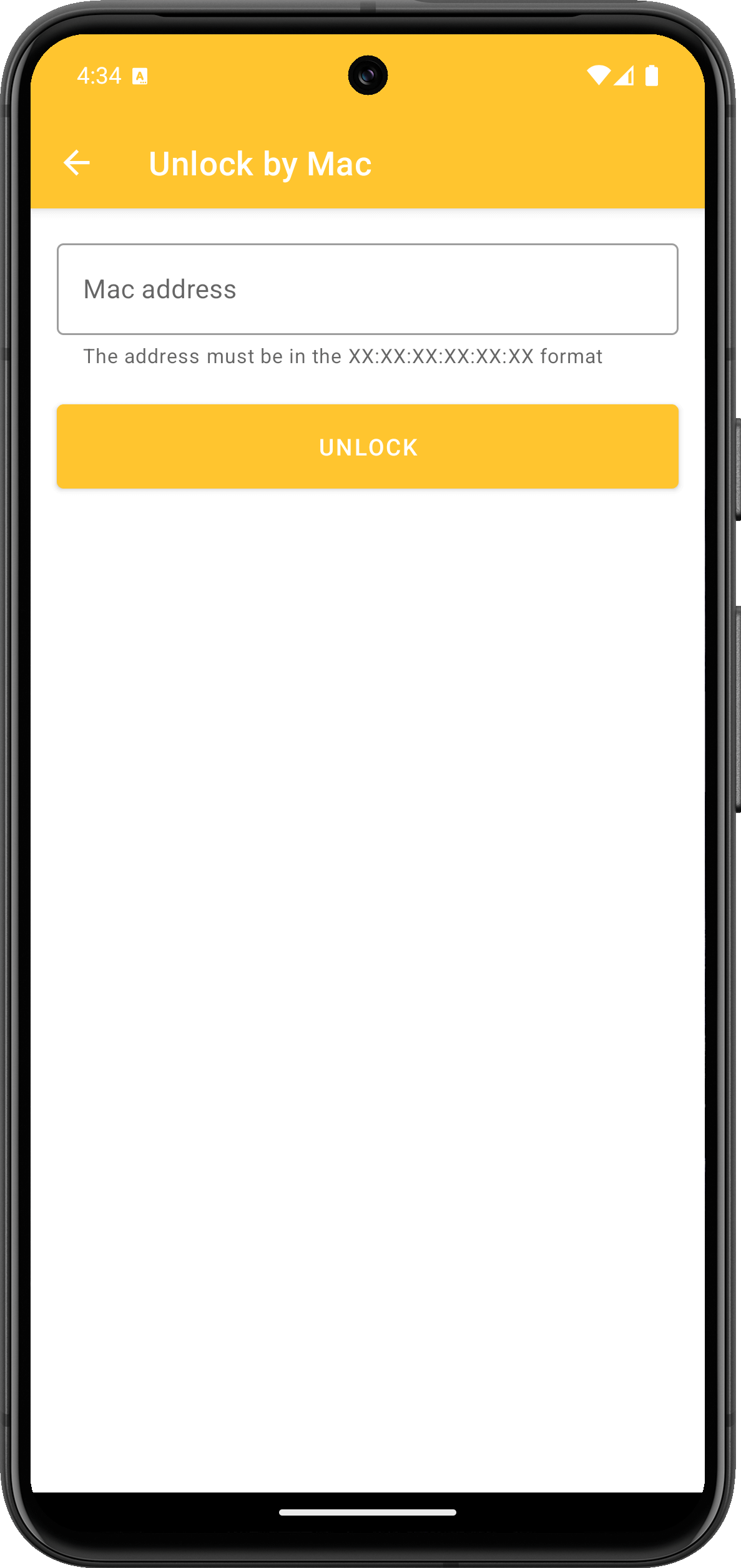
The Android version of the app also allows you to unlock a lock by typing its MAC address, written below the QR code (as highlighted in the picture below)

Open the corresponding section of the app and type the MAC address in the following format (: included!)